
FAQ / Saving Items / How to save products from stores that don't have the save button yet
How to save products from stores that don't have the save button yet
Go to the webpage of the product you want to save.
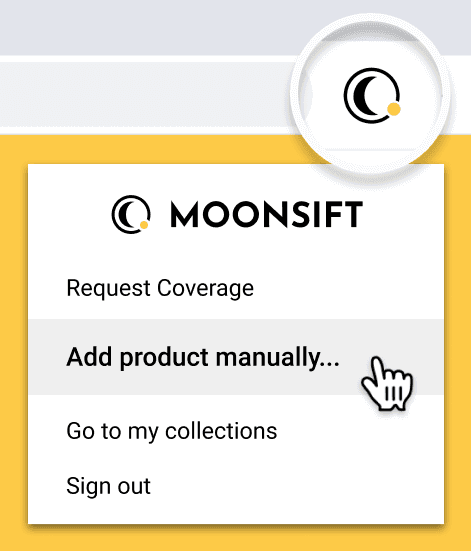
Click the Moonsift icon in the top right of your Chrome toolbar and a small window will appear. Note: if you cannot see the Moonsift icon as below, you will first need to click the dark grey ‘puzzle piece’ icon next to it and first pin the Moonsift extension to your toolbar).
Click ‘Add product manually’
A new page will open, from this page:
i) Choose which collection you want to add it to,
ii) Choose which images of the product you want,
iii) Check that Moonsift has identified the correct price and product description.
P.S. If you would like us to add the save button to that store for future use, when you are on their site, click the Moonsift button in your browsers and then select 'Request coverage' and this will send a message to our team to start working on it.
🔗 Go back to my Collections on Moonsift.com
Can’t find the question you’re looking for? Send us an email at hello@moonsift.com