
FAQ / Saving Items / How to save items with Moonsift's browser extension?
How to save items with Moonsift's browser extension
Save items from anywhere via your toolbar
No matter what website you're browsing, if you have added Moonsift's extension to your browser, you can save items via the Moonsift icon in your toolbar.
If you've added the Moonsift extension but you can't see the Moonsift icon in your toolbar, then you may have forgotten to pin it - see how here.
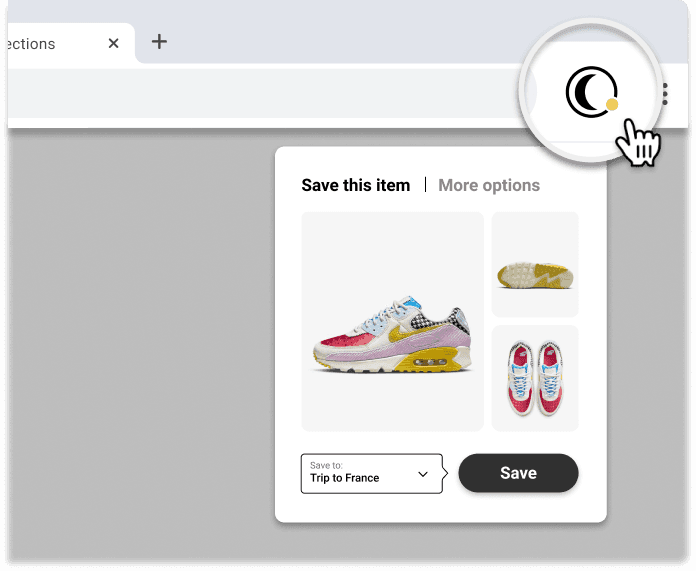
Assuming you have the Moonsift extension and have pinned it to your browser:
Go to the product you want to save (on any online store)
Click the Moonsift logo in your toolbar
Choose which images of the item you want
Save to one or more Collections
Quick-save buttons on 1,000s of stores
Hover and save - when browsing lots of items on a page
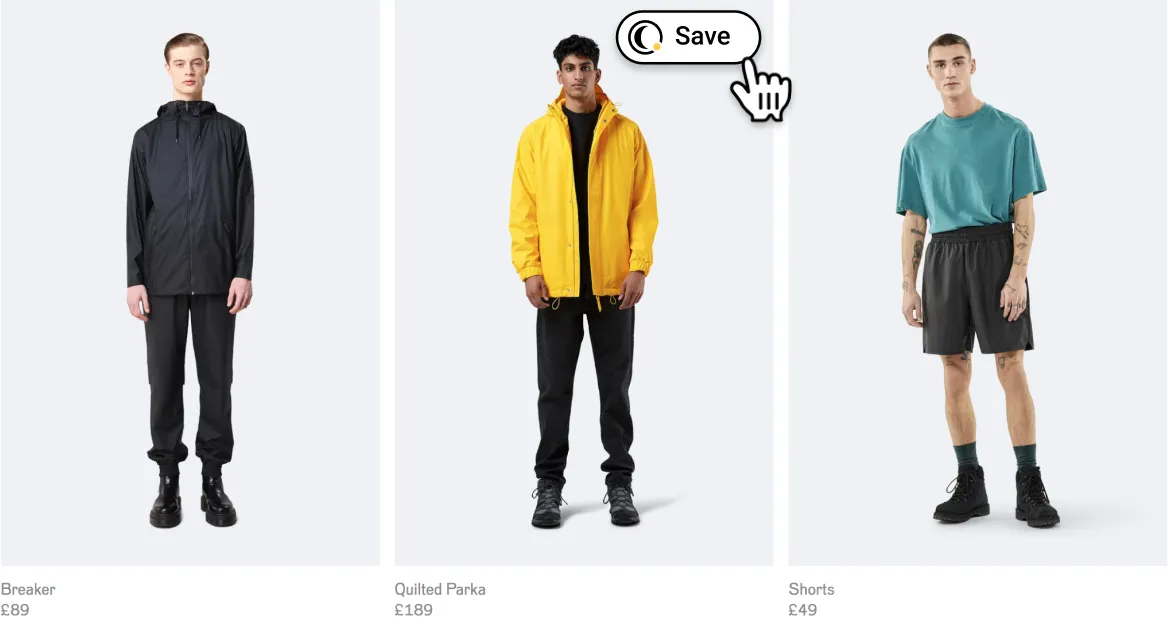
Note that it may take a few seconds for the save buttons to load if the store's website is slow.
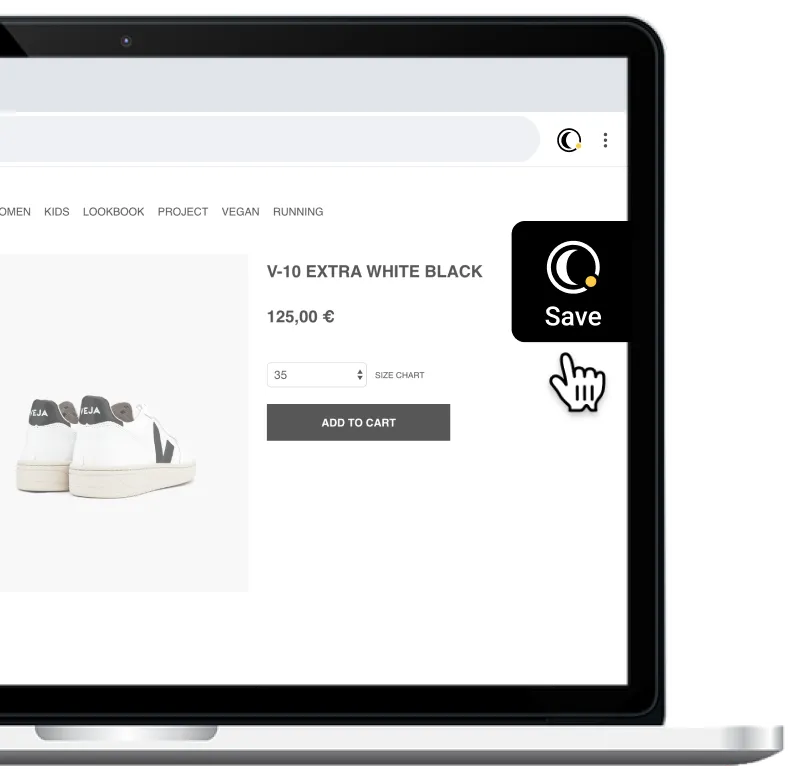
Save from the right hand side - when viewing a single item
When viewing a single product, use the black save button on the right side of your screen.
Can’t find the question you’re looking for? Send us an email at hello@moonsift.com