
FAQ / Getting Started / How do I save items to collections on desktop?
How do I save items to collections on desktop?
Save items from anywhere via your toolbar
No matter what website you're browsing, if you have added Moonsift to your laptop or PC, you can save items via the Moonsift icon in your toolbar.
Click here if you can't see the Moonsift icon in your toolbar.
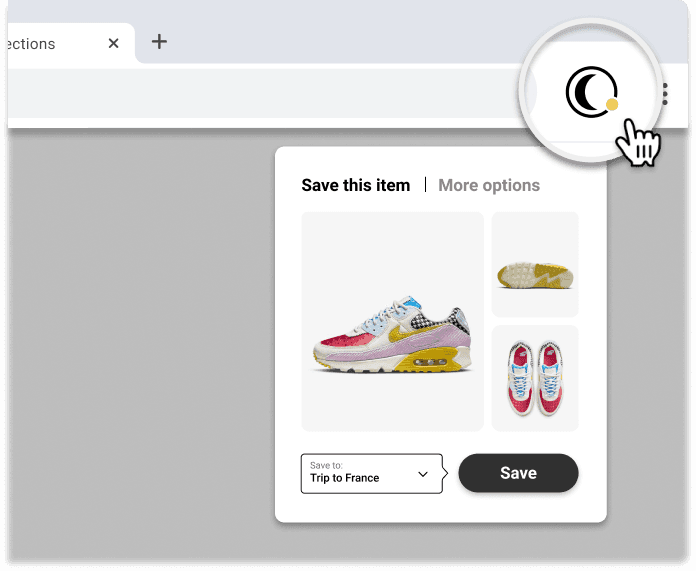
Go to the product you want to save (on any online store)
Click the Moonsift logo in your toolbar
Choose which images of the item you want
Save to one or more Collections
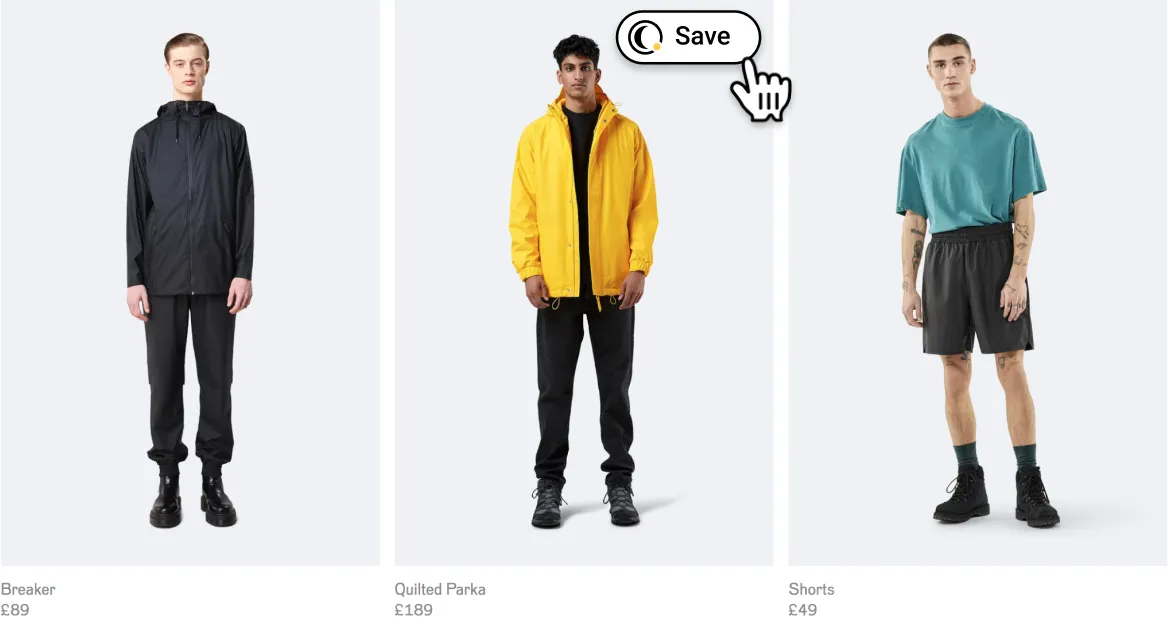
Quick-save buttons on 1,000s of stores
Hover and save - when browsing lots of items on a page
Note that it may take a few seconds for the save buttons to load if the store's website is slow.
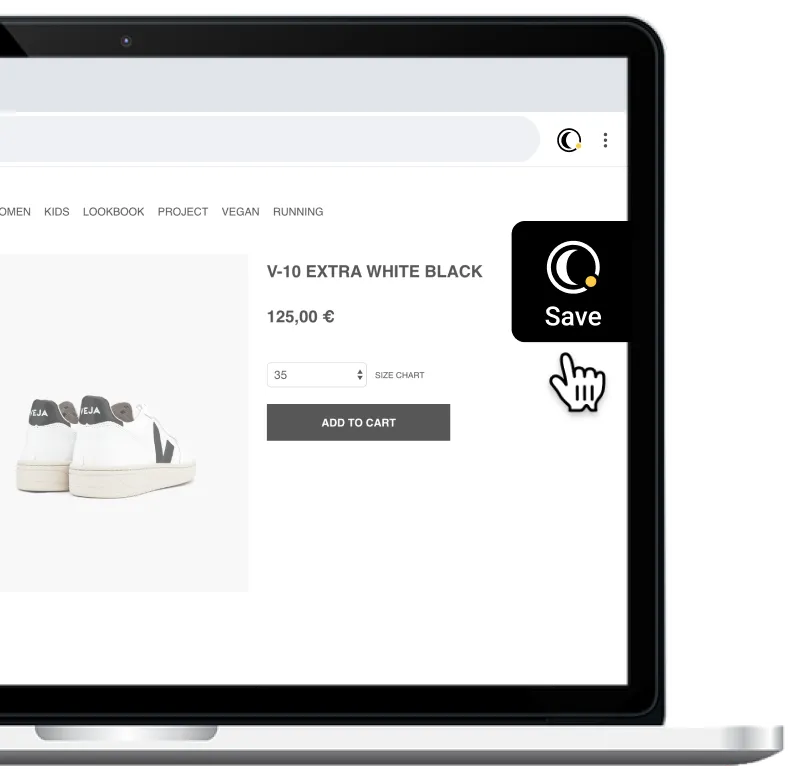
Save from the right hand side - when viewing a single item
When viewing a single product, use the black save button on the right side of your screen.
Can’t find the question you’re looking for? Send us an email at hello@moonsift.com